PDF to EPUB Converter for E-readers and Phones
PDF to EPUB, done on your own device: drop in a PDF and get an EPUB 3 book whose text wraps to any screen. Nothing is uploaded, nothing is stored, and there is no fee or watermark.
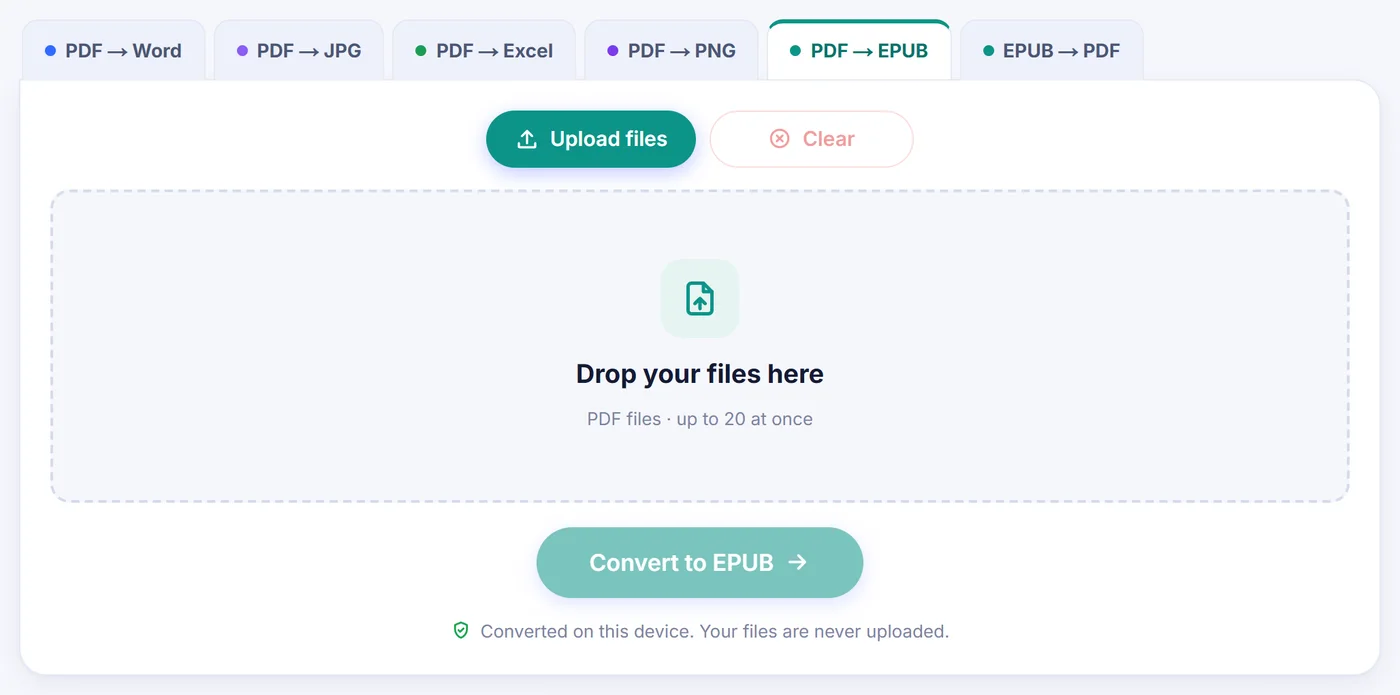
Converted on this device. Your files are never uploaded.
How it works
Drop in the PDF
Add one document or a stack of them; each file is opened locally by your browser.
Look over the book details
Check the title, author, cover and chapter setting, or keep what was read from the PDF properties.
Save the .epub
Press the button, wait for the progress bar, then send the e-book to your reading app.
Why read a PDF as an EPUB?
A PDF is a picture of printed pages. On a laptop that is fine, but on a 6-inch e-ink screen or a phone held upright, an A4 page shrinks to unreadable text, and every line means another pinch and drag. EPUB works the other way round: the book carries words, headings and pictures, and your reading app lays them out for the screen you happen to hold. You pick the typeface, the size, the margins and night mode, and the pages simply recompute.
That is why people convert course readers, long reports, manuals, fan fiction saved as PDF, or their own manuscripts before a proofreading session on the sofa. The result opens in Apple Books, Google Play Books and on Kobo readers, and Kindle owners can pass it through Send to Kindle.
How the PDF to EPUB conversion works here
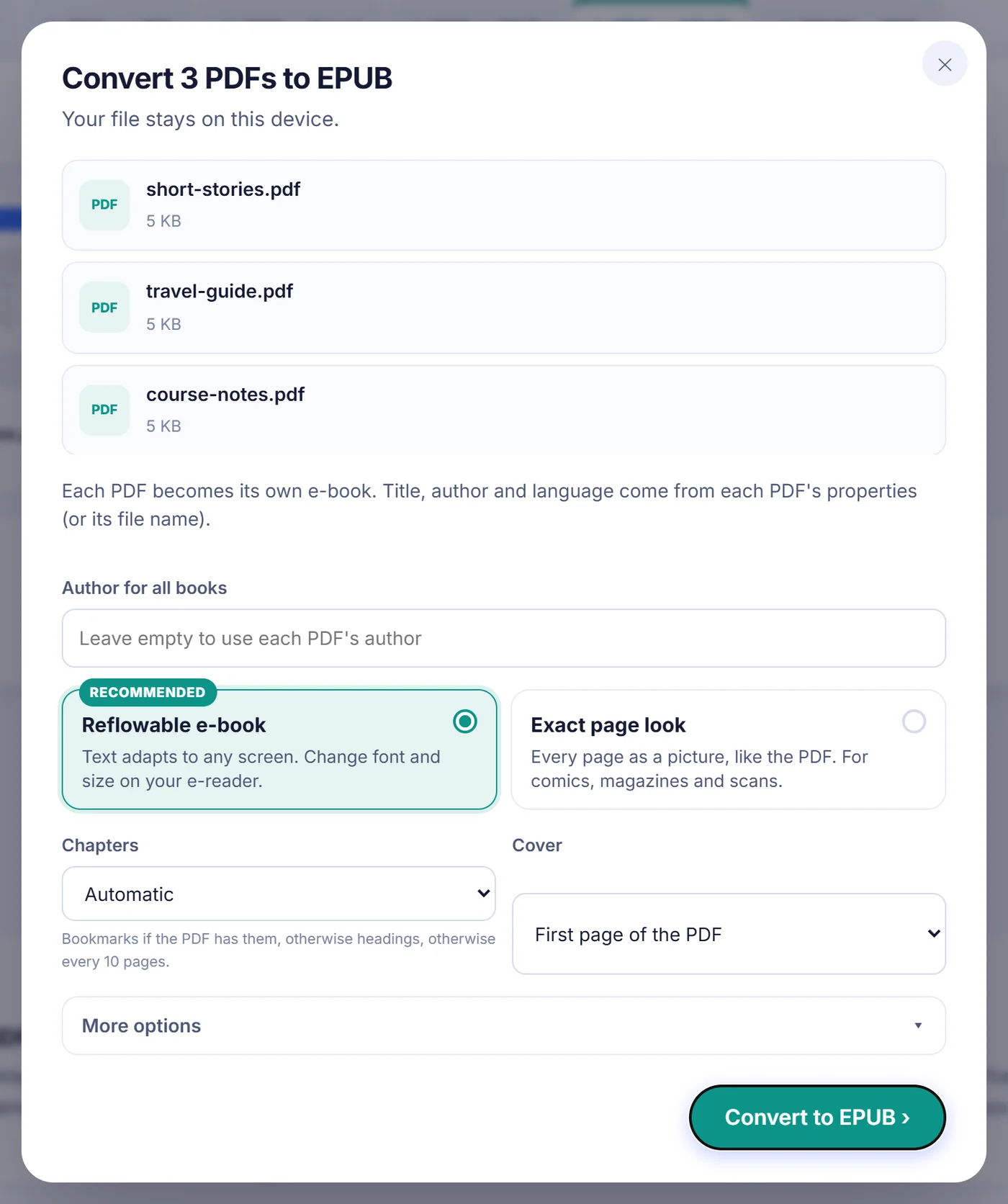
After you add a file, the page reads it, looks for a title, an author and bookmarks, and opens an options window. For a single PDF you also see a small preview of page one and a short line of facts: the page count, how many bookmarks were found, and whether the document has a text layer at all. Then you choose a few settings.
Reflowable book or exact page look
The default, Reflowable e-book, rebuilds the text so it can wrap. The alternative, Exact page look, turns every page into a JPEG of about 1600 pixels on its longest side and builds a fixed-layout EPUB. Choose it for comics, picture books, magazines or forms where the design matters more than the words. In that mode the chapter menu and the picture switches are greyed out: the contents menu follows the PDF bookmarks, and a document over 20 pages without bookmarks gets an entry every 10 pages.
Where chapters start
The Chapters menu has five settings. Automatic uses bookmarks when there are at least two at the same level, falls back to detected headings, and otherwise cuts files longer than 15 pages every 10 pages (or every N, if you changed that number); short documents stay as one chapter. You can also force From bookmarks, From headings, Every N pages (any number from 1 to 500) or One chapter. Sub-headings appear as nested entries in the contents menu, and a very long chapter is split into several files so page turns stay quick on modest e-readers.
Cover and book details
The cover can be page one, an image of your own (JPG, PNG or WebP) or nothing. Title and author are taken from the PDF properties; when the stored title is junk such as an export filename, the file name is used instead. The language list holds 26 languages and is preset from the PDF when it declares one. Picking Arabic or Hebrew switches the book to right-to-left page direction.
More options
Three switches sit under "More options": include pictures, remove page numbers with running headers and footers, and keep pages that have no text as full-page images. All three are on by default, and the page remembers your last choices on this device.
What carries over, and what changes
In reflowable mode the converter works line by line. Lines are joined into paragraphs, words broken with a hyphen at a line end are stitched back together, and two-column articles are read down the left column before the right. Larger lines and short bold lines become headings (up to four levels), bullet points become real lists, and bold and italic words keep their emphasis. Typographic ligatures are turned back into normal letters, and an oversized first letter (a drop cap) is joined to the rest of its word.
Photos and raster figures are cropped from the page and placed where they appeared in the reading order. Tiny icons, full-page backgrounds behind text and logos printed in the same spot on many pages are skipped, so the book is not cluttered. Diagonal watermarks and sideways margin notes are dropped too.
Some things do not survive. Tables arrive as plain paragraphs rather than a grid. Charts drawn with vector lines instead of an embedded image are not cut out as pictures. Original fonts are not embedded, because the whole point is that your reader chooses the font. If a document leans heavily on any of these, the exact page look keeps everything visible.
Fixing common snags
- The book shows photos of pages. The PDF is a scan with no text layer. Run it through OCR first, then convert the result to get resizable text.
- Locked file. A password-protected PDF triggers a prompt. The password is used only in your browser to open the document. In a batch, cancelling the prompt for one of the later files skips just that file.
- Chapters in odd places. Open the converter again with "Change options" and switch from Automatic to bookmarks, headings or a fixed page count.
- Out of memory. Huge illustrated PDFs can exhaust a phone. Turn off pictures, stay with the reflowable layout, or split the PDF and convert the parts.
- Empty result. If a file has neither text nor pictures, there is nothing to put in a book, and the page tells you so instead of producing a blank EPUB.
Several PDFs at once
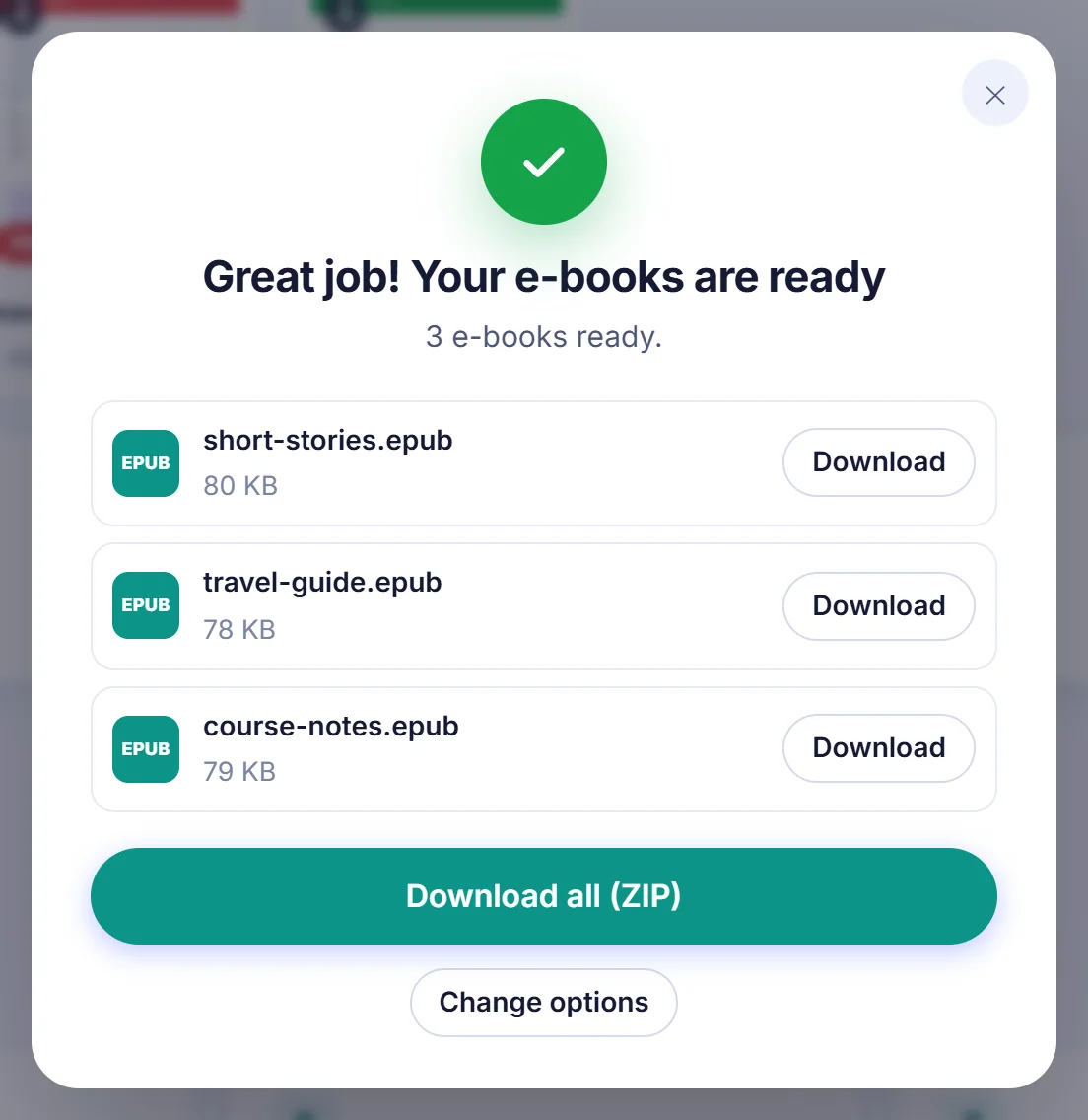
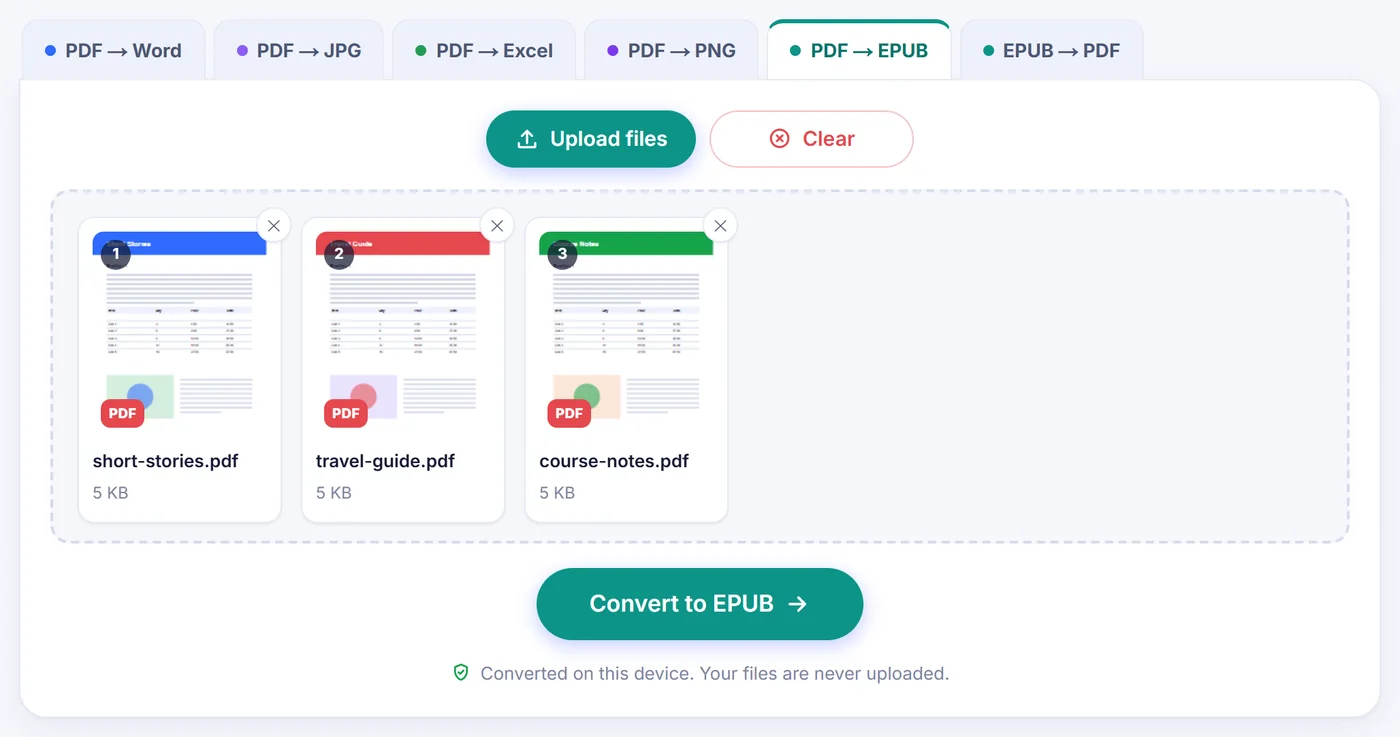
Add up to 20 files and every one of them is converted, one after another, into its own e-book named after the original PDF. Each book takes its title and language from its own file (the language falls back to your browser language), and you may type one author name for the whole set or leave the field empty to keep each PDF's author. A file that fails is listed as not converted while the others carry on. At the end you can save the books one by one or grab them together as a ZIP; identical names get a number so nothing is overwritten.
Privacy, in plain words
The conversion code is downloaded with the page and runs in your browser tab. Your PDF is read from your disk into memory, the EPUB is assembled there, and the download comes from that same memory. No copy travels to a server, so there is nothing for anyone to delete later; closing the tab is enough. No registration, no email address, no tracking cookies.
Frequently asked questions
How do I convert a PDF to EPUB for free?
Add the PDF on this page, check the title, cover and chapter setting in the window that opens, then press Convert to EPUB and save the file. There is no charge, sign-up or watermark.
Will a PDF converted to EPUB work on a Kindle?
Yes, through Send to Kindle, which accepts EPUB files and prepares them for your device. Apple Books, Google Play Books and Kobo open the file directly.
Can I make an EPUB from a scanned PDF?
Yes, but scanned pages have no real text, so they are added as full-page images. Run OCR on the scan first if you want text that wraps and resizes.
Does the converter keep images and tables?
Embedded photos and figures are cropped and placed in the text. Tables become ordinary paragraphs, and vector charts are not cut out; pick Exact page look if those matter.
Can I convert a password-protected PDF to EPUB?
Yes. You are asked for the password, which is used only inside your browser to open the file and is never sent anywhere.
How are chapters created in the EPUB?
Automatically from the PDF bookmarks, or from detected headings, or every 10 pages for longer files. You can also choose bookmarks, headings, every N pages or a single chapter yourself.